An alert is only useful if it reaches the people who need to act on it.
You can have the right SQL query, the right threshold, and the right monitoring rule, but if the notification ends up in a place nobody checks, the alert hasn't solved much.
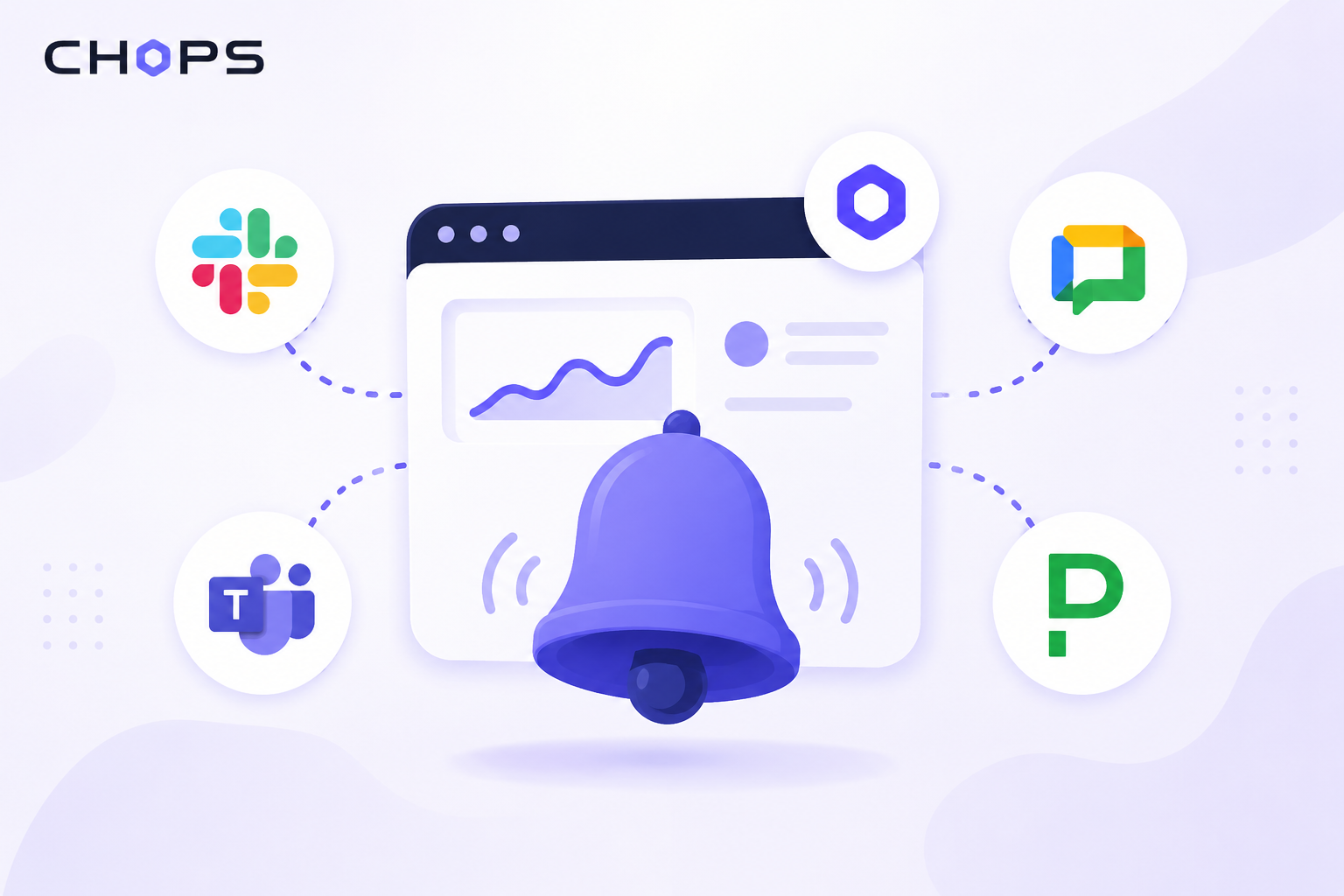
That's why CH-Ops Pro lets you send ClickHouse® alerts to the tools your team already uses every day: Slack, Microsoft Teams, Google Chat, and PagerDuty.
Instead of asking your team to keep another dashboard open or check another system for alerts, CH-Ops can bring the notification directly into your existing communication and incident-response workflow.
From a ClickHouse® condition to a team notification
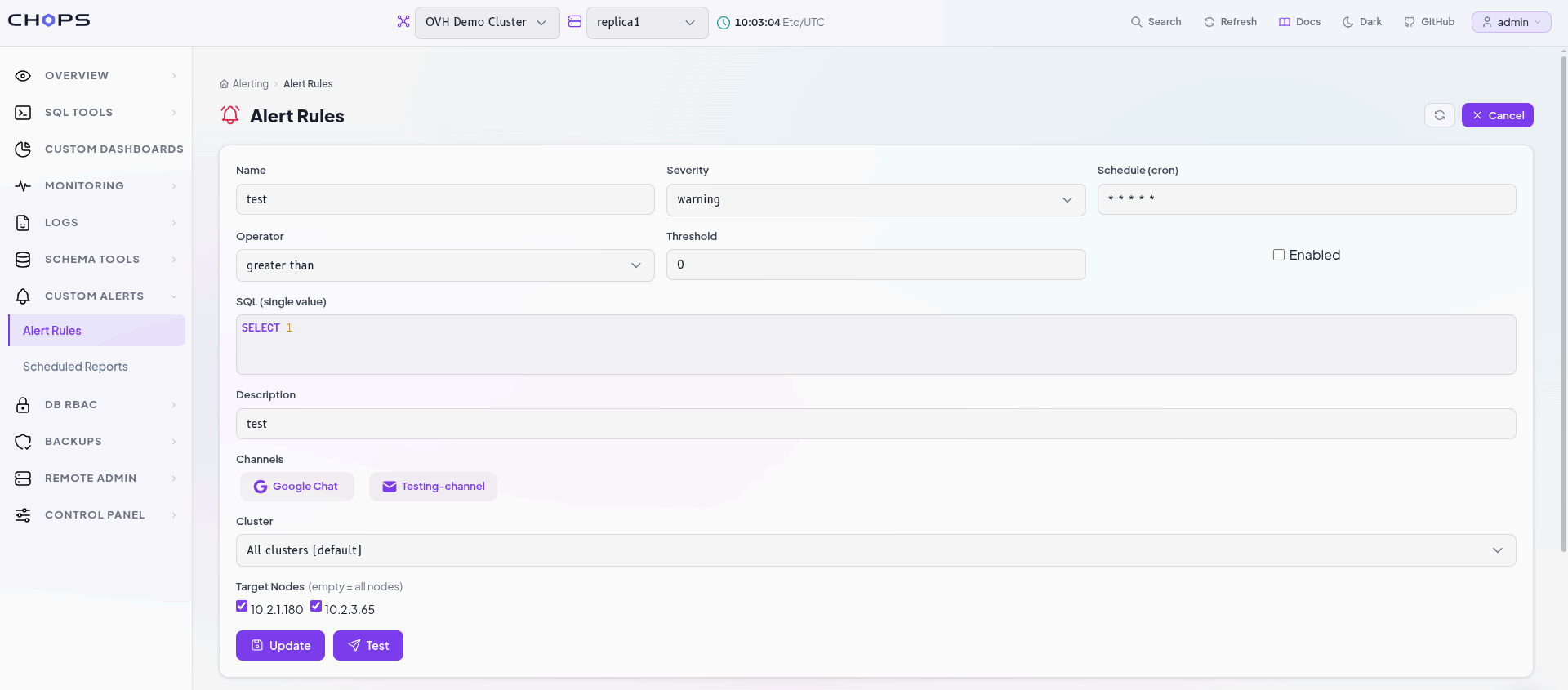
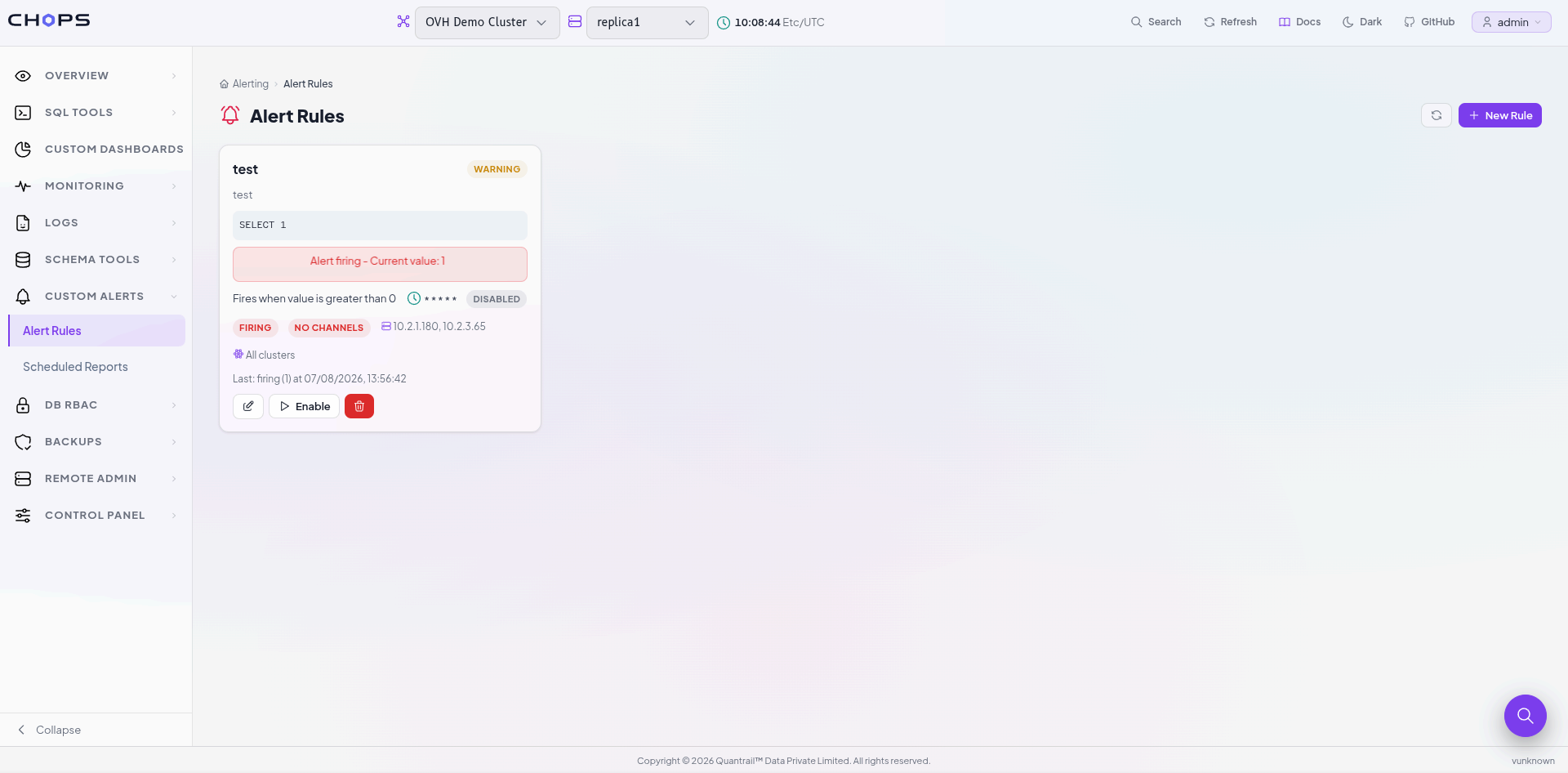
CH-Ops Alerting lets you define an alert using a SQL query that returns a single value.
You then define what should count as a problem by setting a threshold and comparison, such as:
- Greater than
- Less than
You can also define the alert's severity, schedule, and the nodes it should monitor.
When the condition is met, CH-Ops fires the alert.
That's where notification channels become important.
Rather than stopping at "something crossed the threshold," CH-Ops can deliver the alert to the place where your team is already working.
And each notification includes the context needed to understand what happened.
What does an alert contain?
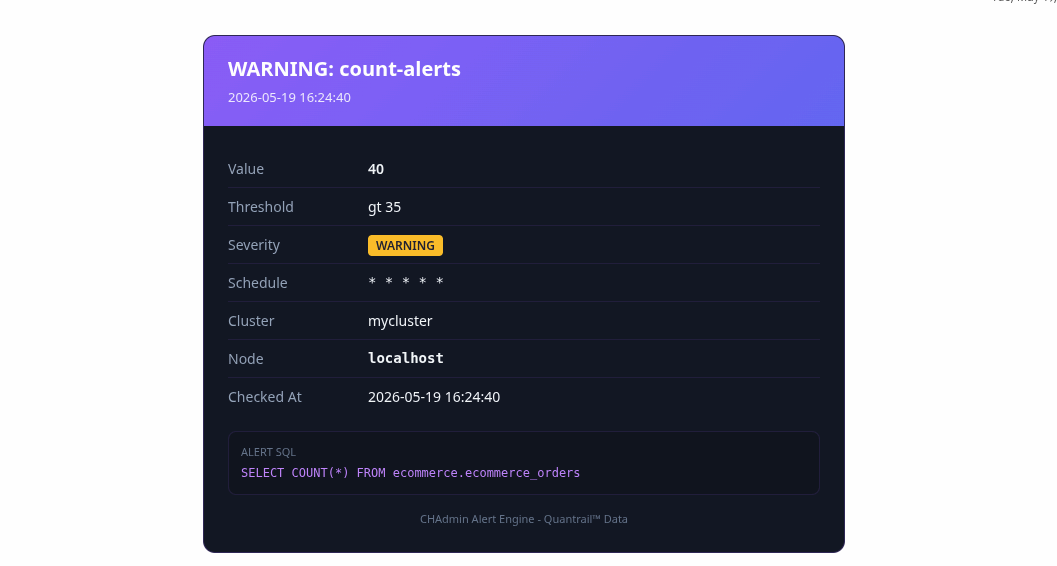
Regardless of where the notification is delivered, CH-Ops includes the important details of the alert.
Each notification includes:
| Alert Information | Included |
|---|---|
| Alert name | Yes |
| Severity | Yes |
| Description | Yes |
| Current value | Yes |
| Threshold and comparison | Yes |
| Alert SQL query | Yes |
| Schedule | Yes |
| Cluster hostname(s) | Yes |
| Timestamp | Yes |
This matters because a useful alert should give you enough information to decide what to do next.
You shouldn't have to receive a message saying only "Alert firing" and then open a dashboard just to figure out what happened.
With CH-Ops, the notification includes the condition, the value that triggered it, the configured threshold, and the affected host or hosts.
Slack: Keep ClickHouse® alerts in the conversation
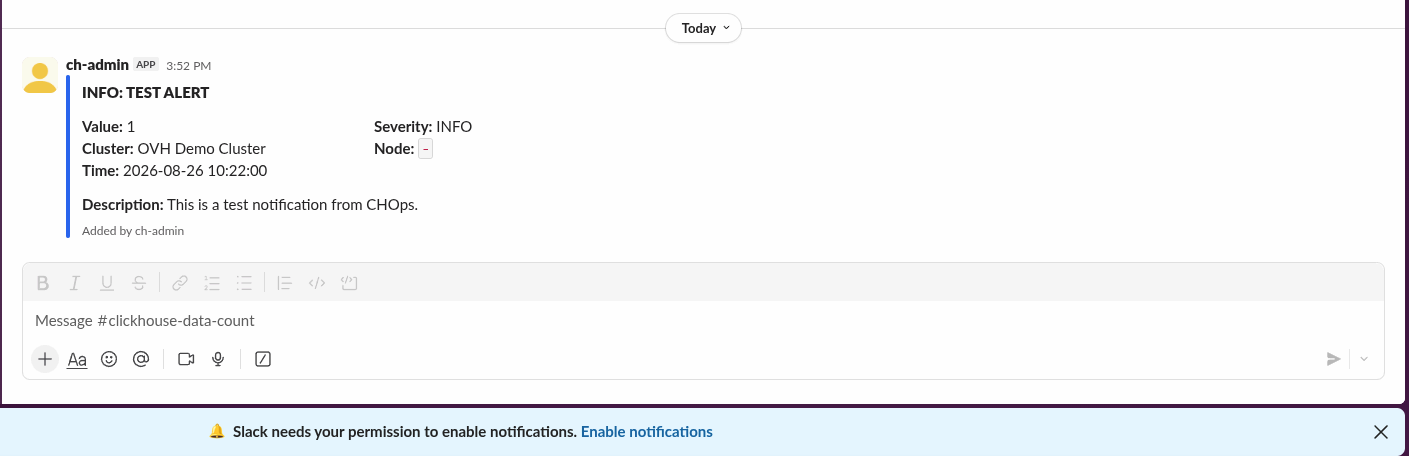
For teams that live in Slack, sending alerts directly into a Slack channel keeps operational information close to the conversations where your team is already working.
Instead of requiring someone to regularly check a monitoring interface, a firing alert can appear in the team's chosen Slack channel.
This can be useful for teams that want operational visibility to be shared rather than delivered to one person's inbox.
A Slack notification can include the same alert context as other channels:
- Alert name
- Severity
- Current value
- Threshold
- SQL query
- Affected hostname
- Timestamp
That gives the team enough information to understand the alert without having to start from scratch.
You can also use different channels for different types of alerts.
For example, routine warnings can go to a shared operations channel while more important alerts can be routed somewhere the relevant team monitors more closely.
The important part is that the alert appears where the team already communicates.
Microsoft Teams: Bring alerts into your team's workflow
If your organization uses Microsoft Teams for day-to-day communication, CH-Ops can send alerts directly to a Teams channel.
That means your ClickHouse® alerts don't have to live separately from the conversations around them.
A firing alert can appear alongside the rest of the team's operational communication, carrying the information needed to understand the event.
This can be especially useful when the people responsible for ClickHouse® aren't constantly working inside a monitoring dashboard.
Instead, the alert comes to them.
The notification includes the same core context:
- What alert fired
- How severe it is
- What value was observed
- What threshold was crossed
- Which SQL query produced the value
- Which host or hosts were affected
- When the alert occurred
The goal is simple: make the alert available in the workflow your team already uses.
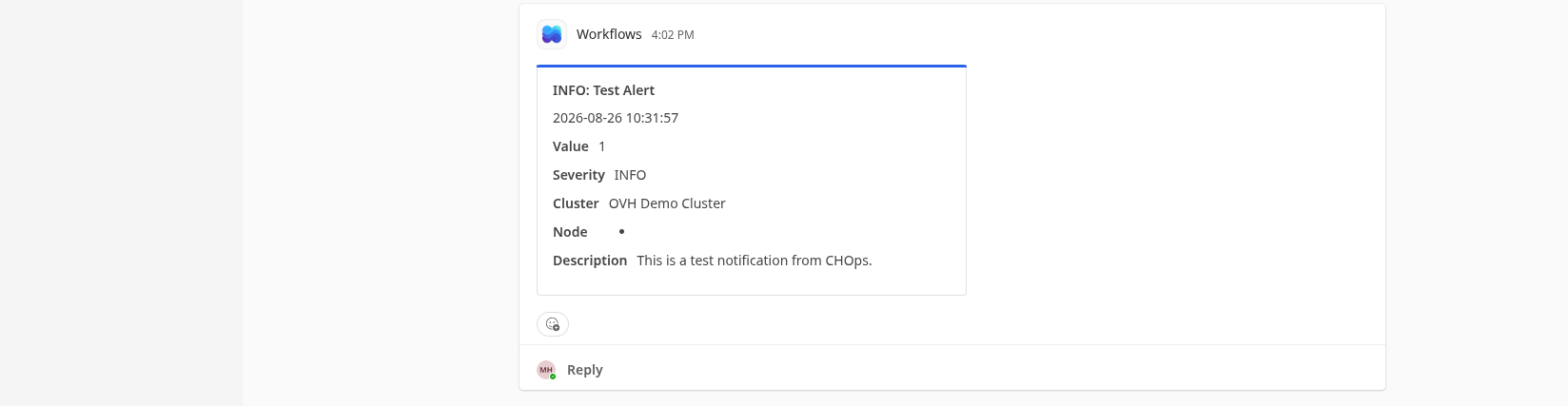
Google Chat: Send alerts to your Chat space
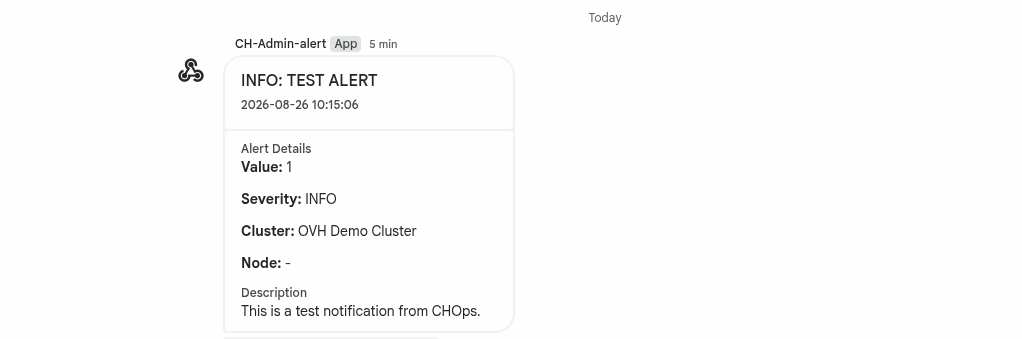
Google Chat provides another way to bring ClickHouse® alerting into an existing team workflow.
With CH-Ops Pro, alerts can be delivered to a Google Chat space.
As with Slack and Teams, the notification carries the relevant alert context rather than just telling you that something happened.
That means someone seeing the notification can immediately understand:
What happened?
How serious is it?
What value triggered the alert?
What threshold was crossed?
Which ClickHouse® host was affected?
What query is being evaluated?
That context turns a notification into something actionable.
Instead of treating Google Chat as another place where a generic alert message appears, CH-Ops uses it as another delivery point for the same structured alert information.
PagerDuty: When an alert needs an incident response
Not every alert deserves the same level of attention.
A warning that appears in a team chat is different from a critical condition that needs an on-call engineer to respond.
That's where PagerDuty fits into the picture.
CH-Ops Pro can send alerts to PagerDuty as incidents, allowing critical ClickHouse® conditions to enter an incident-response workflow.
This creates a useful distinction between visibility and escalation.
Slack, Teams, and Google Chat can keep teams informed.
PagerDuty can be used when an alert needs to become part of the team's on-call process.
For a critical alert, the notification can carry the information needed to understand the underlying condition while PagerDuty handles the incident workflow.
That means CH-Ops doesn't require every alert to follow the same path.
You can decide which notification channel makes sense for the severity and workflow of each alert.
One alert, multiple channels
Your team doesn't necessarily have to choose a single destination.
A single CH-Ops alert can be sent through multiple channels.
For example, imagine a critical ClickHouse® condition that your team wants to make visible to everyone while also notifying the person responsible for the current incident.
You could send the alert to:
- Slack for team visibility
- Microsoft Teams for a team working in that environment
- PagerDuty for incident response
The same alert can therefore serve different purposes without requiring separate alert definitions for each destination.
This becomes particularly useful when your organization has different communication patterns for different levels of severity.
Choose the channel based on the response
The best notification channel isn't necessarily the one with the most features.
It's the one that matches what your team needs to do when the alert fires.
Use Slack when the team needs visibility
Slack can be a good fit when alerts should appear in an existing team or operations conversation.
Use Microsoft Teams when your team works in Teams
If Teams is already where your organization communicates, sending ClickHouse® alerts there removes the need to introduce another destination.
Use Google Chat when your team works in Chat
Google Chat provides another way to put alerts directly into an existing team space.
Use PagerDuty when the alert needs escalation
For critical conditions that require an on-call response, PagerDuty lets the alert become part of an incident-management workflow.
The point isn't to send every alert everywhere.
It's to send the right alert to the right place.
You can still use email
The additional channels don't replace the basic alerting workflow.
Email is available in the CH-Ops community edition and is the default notification method.
CH-Ops sends alerts through your SMTP server, with the alert information included in the message.
CH-Ops Pro extends that model with Slack, Google Chat, Microsoft Teams, and PagerDuty.
This gives teams a choice between a straightforward email-based workflow and integrations with the communication and incident-management tools they already use.
Why this matters for ClickHouse® operations
The value of alerting isn't simply that a system can detect a threshold.
ClickHouse® already gives you the ability to query and inspect what is happening in your environment. The challenge is turning that information into something you can act on without continuously watching it.
CH-Ops Alerting lets you define the condition once.
CH-Ops evaluates it on a schedule.
When the condition is met, the notification goes to the destination you've configured.
And because the alert includes the SQL query, value, threshold, severity, affected host, and timestamp, the person receiving it has useful context immediately.
That changes the workflow from:
Check dashboard → notice something → investigate → notify the team
to:
Define condition → CH-Ops detects it → team gets notified → investigate
The dashboard is still useful for investigation. But you don't have to rely on someone constantly watching it just to discover that something crossed a known threshold.
Alerting that fits your team's workflow
Infrastructure teams rarely work in one tool.
One person may be monitoring ClickHouse®.
Another may be communicating in Slack.
Someone else may be working in Microsoft Teams.
And the on-call engineer may be responding through PagerDuty.
Your alerting system shouldn't force everyone into the same workflow.
That's the idea behind CH-Ops Pro's notification channels.
The alert is defined in CH-Ops. The response can happen where your team already works.
Whether that's Slack, Microsoft Teams, Google Chat, or PagerDuty, the goal is the same: make sure the right people know when a ClickHouse® condition needs attention.
Stop making your team watch another dashboard
Monitoring dashboards are valuable.
But nobody wants to spend their day refreshing one just to find out whether a particular value has crossed a threshold.
CH-Ops Alerting lets you define the condition and let the system watch it for you.
Then, when something happens, you can send that alert to the tool your team already uses:
Slack for team visibility.
Microsoft Teams for team communication.
Google Chat for your Chat spaces.
PagerDuty for incident response.
And because the notification carries the context of the alert, your team can start understanding the problem immediately rather than first figuring out what generated the notification.
Your ClickHouse® alerts shouldn't live in another dashboard nobody checks. Send them where your team already works.