I have been a database administrator long enough to have strong feelings about backups, and the strongest one is this: a backup process that only one person understands is not a backup process, it is a liability. For years, ClickHouse® backups were exactly that, a script in a cron job that the team trusted because it had not failed yet. This post is about doing it properly: backing up to cloud storage with visual controls, so the process is something the whole team can see and run.
Why ClickHouse backups need care
ClickHouse® is not like a small transactional database where you dump the whole thing every night and move on. It stores data in parts that are constantly merged in the background, and a naive filesystem copy can capture an inconsistent state mid-merge. You need to use ClickHouse®'s own BACKUP command, which understands the storage engine and produces a consistent backup.
The BACKUP command can write directly to object storage, which is where you want your backups: off the database node, durable, and cheap. The three big targets are S3, Google Cloud Storage, and Azure Blob Storage, and ClickHouse® supports all of them.
Storage profiles instead of scattered credentials
The thing that makes cloud backups painful is configuration. Bucket names, regions, credentials, paths, all of it has to be right, and it tends to get copied between scripts and config files until nobody is sure which is current. The approach I prefer is a storage profile: you define a backup target once, with its credentials and settings, and then you just pick it when you run a backup.
In CHOps backups you set up an S3, GCS, or Azure profile once. After that, running a backup is choosing what to back up and which profile to send it to. The credentials live in one place, not sprinkled across cron scripts on different nodes. When a credential rotates, you update it once.
Running a backup you can see
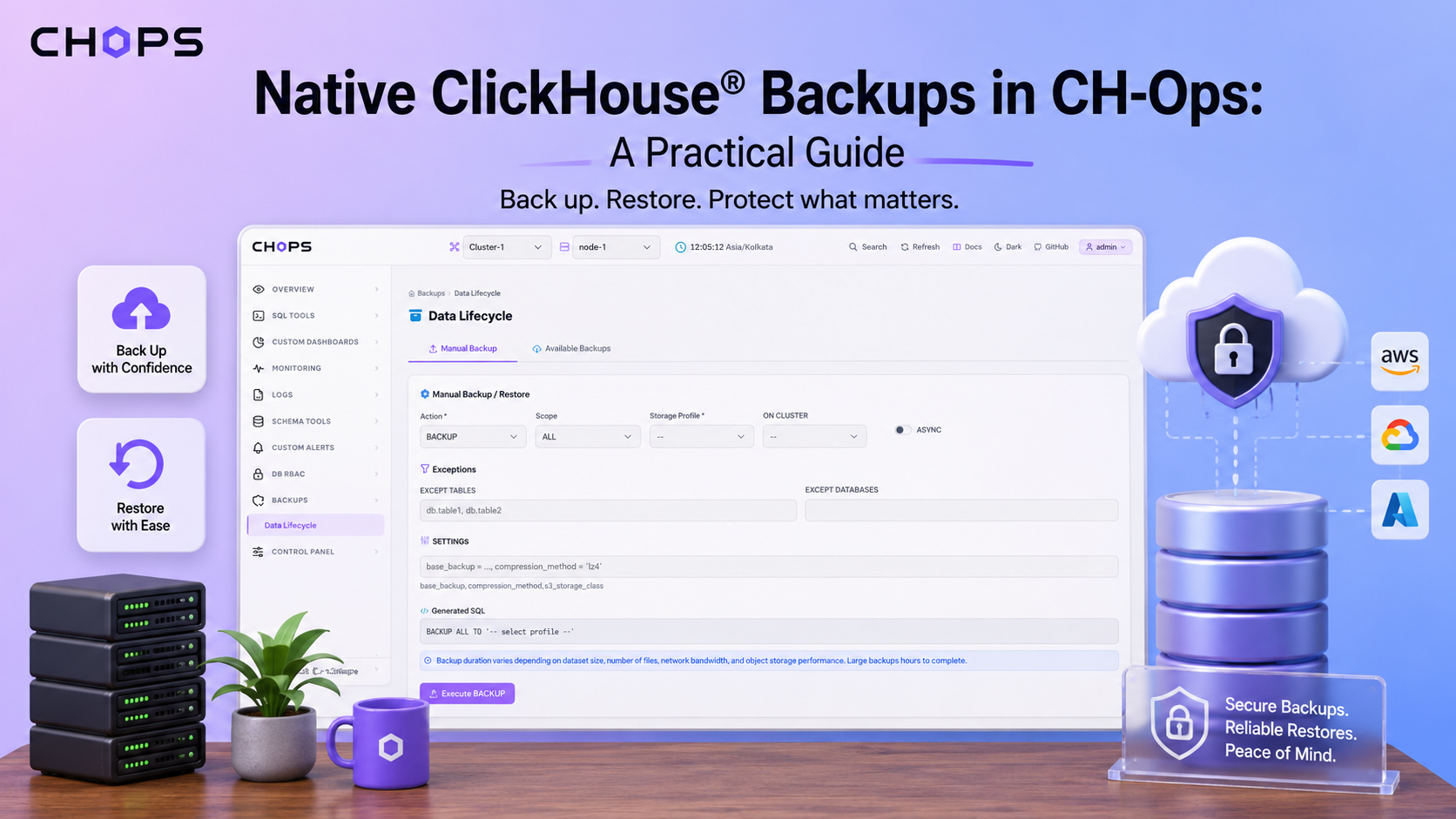
The core of the open-source backups feature is visual control over on-demand backups and restores. You pick a database or table, choose a storage profile, and run it. You see it run. When it finishes, it appears in the backup history with its size, duration, and status.
That backup history is the part I value most as a DBA. With a cron script, "did last night's backup work" means SSHing in and reading logs. With a visible history, it means glancing at a screen. You can see at a glance that backups are succeeding, how big they are, and how long they take, and you can spot the day something changed.
Under the hood it is still ClickHouse®'s BACKUP command writing to your object store, something like:
BACKUP DATABASE analytics
TO S3('https://s3.amazonaws.com/my-backups/analytics/2026-05-28', 'access_key', 'secret_key');
The UI generates and runs this for you against the profile you chose, so you do not hand-write the credentials each time, but it is the same reliable command underneath.
What is in CHOps, and what needs CHOps Pro
To be clear about the line: on-demand backups and restores to S3, GCS, and Azure, with storage profiles and backup history, are part of CHOps itself. Scheduled, recurring backups are a CHOps Pro feature. For many teams, on-demand plus a simple external scheduler is plenty to start, and you can move to CHOps Pro when you want scheduling managed for you.
The most important thing is not the schedule anyway. It is that the backup is consistent, it goes to durable off-node storage, and the whole team can see whether it is working. A backup you cannot verify is one you should not trust, which is exactly why I wrote a companion piece on restoring a ClickHouse backup, because a backup you have never restored is only a theory.
The backups feature page has the details on storage profiles and history.